Saved Views
A search you keep. It sits in your sidebar, behaves like a place you can go, and never moves a single message.
Melia keeps mail where your server keeps it: one message, one folder. Views do not change that. A view stores a question, not a pile of messages, and answers it fresh every time you click it, so it is always current after a sync, with nothing to rebuild and nothing to go stale.
Every result still shows the account and folder it really came from, and everything you do to it happens there. Reply, flag, delete, move: all normal, all in the message's real home.
Which makes a view a cheap thing to get wrong. If it is not showing what you hoped, adjust the search or delete it. Your mail is untouched either way.
What you need before you start
Nothing. Views work on any account, need no setup, and are stored on this computer only.
You can read this start to finish in about ten minutes, or jump to the part you are stuck on. Press Ctrl+P at any time to print it, or save it as a PDF.
1 Open Advanced Search
There are two searches in Melia. Quick search sits above the message list and searches the folder you are in. Advanced Search is a separate window for the harder questions, and it is the only place a view is made.
Press \ or Ctrl+Shift+F, or click the magnifier in the toolbar.
This is the whole trick
You do not describe a view and hope. You run a search, look at the list it returns, adjust it until that list is right, and then keep it. The results you approve are the view you get. That is the payoff for spending five minutes in this window.
2 Quick, or Super
Quick and Super are two modes of the same search. Quick takes a phrase. Super builds real conditions, several at a time, including negative ones like "sender is not". Switch with the toggle at the top of the window, or press \ again.

Quick
One search box, plus tick-boxes for which parts of a message to look in: subject, sender, recipient, snippet, body. Scope is two dropdowns: one account, then one of its folders.
Use it for: "anything mentioning Stripe".
Super
Conditions stacked one per line, and as many places to search as you like: whole accounts, individual folders, or every folder of a kind across all of them.
Use it for: "from this domain, with invoice in the subject, in both work inboxes".
A saved view reopens in the mode that can show it
If a view searches more than one folder, or a whole kind of folder, it opens in Super, because Quick has no way to display that and you would be editing a search you could not see.
3 Ask the question
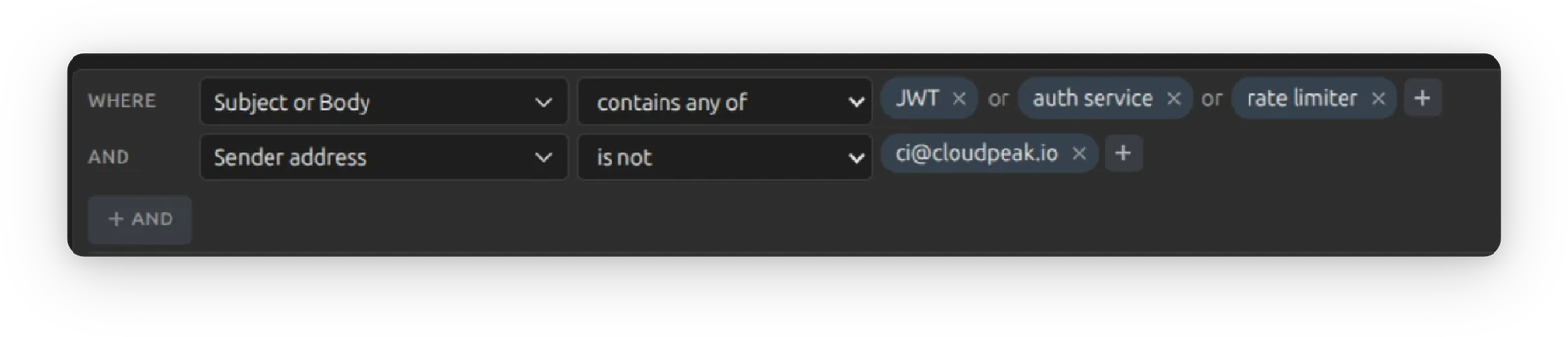
In Super mode the search reads as a sentence. The first line begins WHERE; press + AND for each line after it. Every line is a set of fields, an operator, and one or more values.
The one rule to remember
Several values on one line mean or: any of them will do. Several lines mean and: all of them must be true. That is the whole logic, and there is no all/any switch to get wrong.
The fields
Tick as many as you like on a single line. The All, Text and None buttons set them in one go.
| Field | What it reads |
|---|---|
| Subject | The subject line. |
| Sender name | The display name, like Acme Billing. |
| Sender address | The full address, like billing@acme.com. |
| Sender domain | Just the domain, like acme.com. The clean way to catch a whole company. |
| Recipient | Who it went to: To and Cc. |
| Snippet | The first line or two, as shown in the message list. |
| Body | The full text of the message. |
The operators
Each has an opposite. The wording changes once you add a second value, so it always says what it means.
| Operator | Its opposite |
|---|---|
| contains | does not contain |
| contains any of | contains none of |
| equals | is not |
| equals any of | is none of |
| starts with | does not start with |
| starts with any of | starts with none of |
| matches | does not match |
| matches any of | matches none of |
matches takes a pattern where * stands for anything, and the pattern has to fit the whole field. Re: * catches every reply; *@*.edu catches every university sender.
4 Say where to look
The IN row finishes the sentence. It starts at All Accounts, which means everywhere. Press +, start typing, and add as many places as you want. Beside it sit the date range and the Show only filters, plus the button that keeps the search once it is asking something.

Three kinds of place, and they mix freely
A kind of folder
Every Inbox, Every Sent folder, Every Drafts folder, Every Archive folder, Every Spam folder, Every Trash folder. These follow you: add an account next year and it is included automatically.
A whole account
Every folder in it.
One exact folder
Shown as account ▸ folder, so two folders with the same name are never confused.
A place is a question all by itself
You do not need any words at all. A view with no conditions, scoped to Every Drafts folder, is a perfectly good view: every unfinished message you have, across every account, in one list. The same goes for every Archive, or every Trash.
A date range
Any Time, Today, Last 7 Days, Last 30 Days, Last 3 Months, Last Year, Older Than a Year.
Show only
Unread, Flagged, Attachments. Tick any combination; they narrow whatever the conditions found.
In Quick mode there are no chips. Scope is two dropdowns instead: All Accounts, then All Folders within whichever account you picked. That covers everywhere, this account, and this one folder, which is most searches. The moment you want two folders, or every folder of a kind, press \ and finish in Super.
5 Check the list, then keep it
Look at the results underneath. That list, not a description of it, is exactly what the view will show. When it is right, click Save as view, type a name, and press Enter.
There is only one thing to fill in: the name. Everything else was decided by the search you have been watching, so Melia does not ask again. The box is pre-filled with your search text and pre-selected, so typing replaces it.
Melia then closes the search window, brings the main window forward, and drops you straight into the new view. Name it for what you go looking for, like Receipts, Mum or Unread everywhere, not for how it is built.
Saving a search that finds nothing is fine
A view of every Drafts folder is correct even on a day you have no drafts. Melia says so in the dialog and lets you save anyway. It fills as mail arrives.
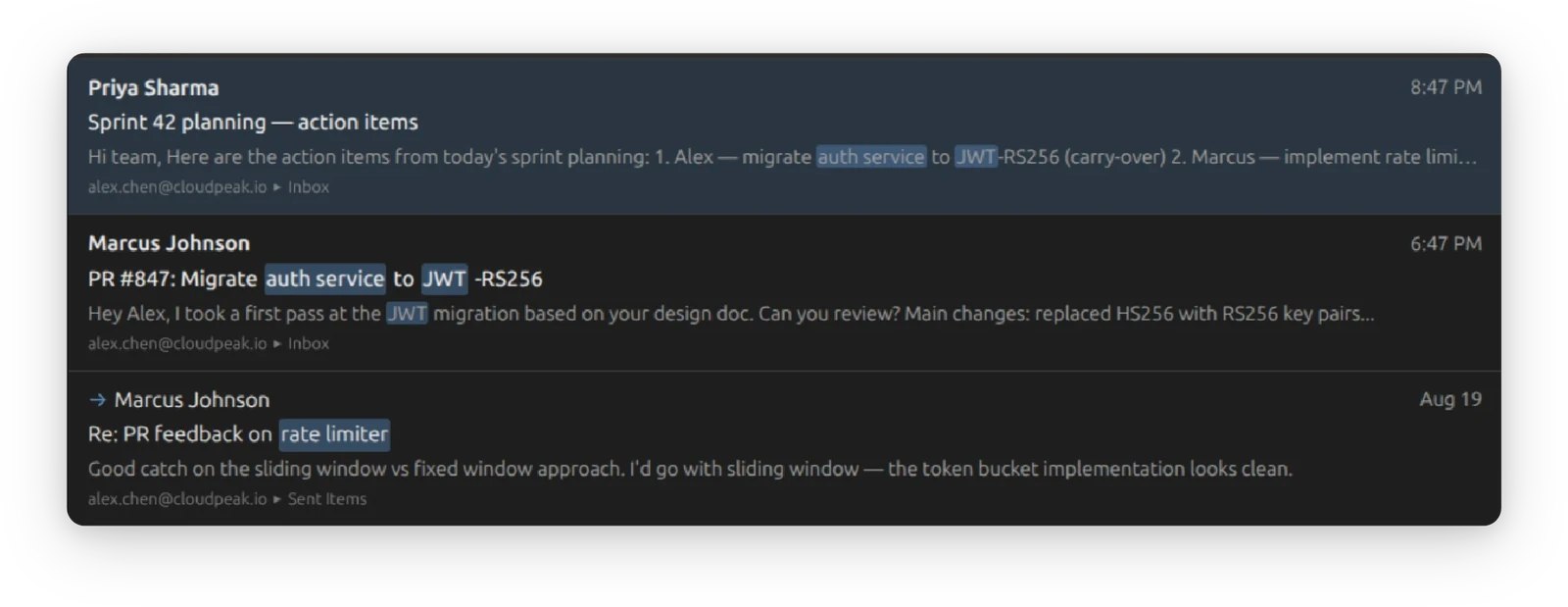
Every row still names its home
Trash and Junk are included
A view shows exactly what the search showed, deleted and spam messages too, unless you scoped them out. That is deliberate: a view that quietly dropped results would leave you counting a gap it never explained. Because every row names its own folder, a message sitting in Trash says so plainly.
6 Five to start with
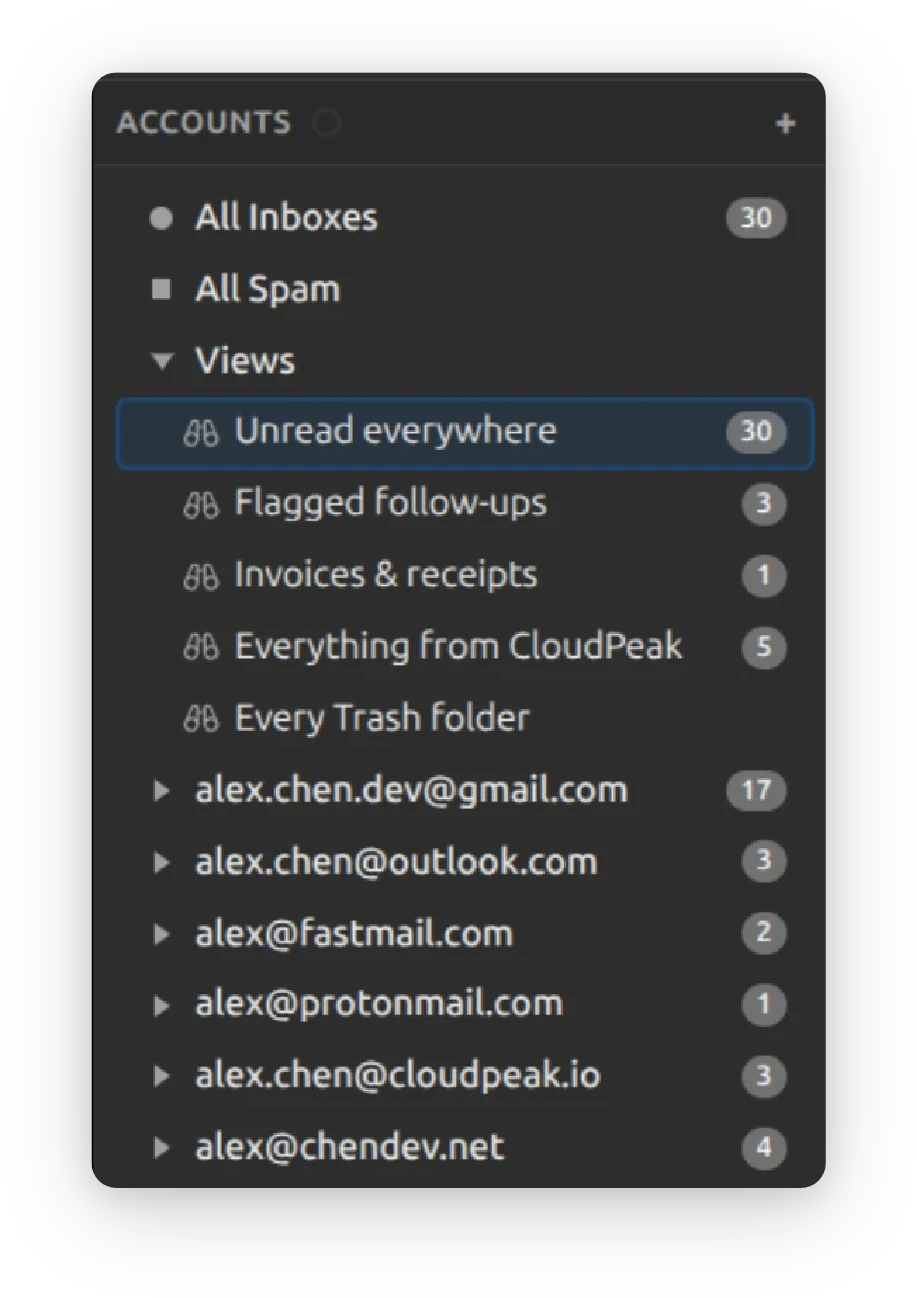
These are the five in the screenshot at the top of this page. Change the words; the shape holds.
| View | The search that makes it |
|---|---|
| Unread everywhere | No conditions at all. In Every Inbox, Show only Unread. One list, every account. |
| Flagged follow-ups | No conditions. In All Accounts, Show only Flagged. What you promised to come back to. |
| Invoices & receipts | Where Subject contains any of invoice, receipt, order. In Every Inbox and Every Archive folder. Every purchase, wherever it landed. |
| Everything from CloudPeak | Where Sender domain contains cloudpeak.io. In All Accounts. One company, sent and received. |
| Every Trash folder | No conditions. In Every Trash folder. Everything you have thrown away, in one place. |
7 Changing one, later
Right-click any view in the sidebar. Four things, and they split by what is changing: the name is a sidebar job, the search is a search-window job.
Open
Same as clicking it.
Edit search…
Reopens Advanced Search with the view loaded and its results already on screen. Tune it, then press Update view, or Save as new view instead, which keeps both.
Rename…
Just the name. Does not touch the search.
Delete view
Removes the view. Your messages are not affected. Melia says exactly that in the confirmation, because deleting something that looks like a folder should not feel like a gamble.
Right-clicking the Views group itself offers New view…, which is another door into the same search window.
8 Living with them
- The unread count is real. The badge beside a view counts the unread mail actually in it, and moves as you read.
- Drag to reorder. Put the one you open every morning at the top.
- Keyboard. Ctrl+↑ and Ctrl+↓ walk the sidebar through your views; Ctrl+→ and Ctrl+← open and close the group.
- Clicking the Views group clears the message list. It holds no mail of its own, so there is nothing to show.
- Reading a message in a view marks it read everywhere, because it is the same message. There is only ever one copy.
9 What a view will not do
- You cannot drag mail into one. There is no destination. The search decides what is in it. To add a message, widen the search.
- You cannot pin or exclude a single message. Same reason. Edit the question instead.
- Your server never sees it. A view is yours, on this computer. Webmail and other mail apps will not show it.
- It searches the mail Melia has downloaded, exactly as search always has. Body text is indexed in the background, so older mail keeps becoming searchable after you first add an account. The search window tells you while that is still running.
Two questions people ask
My view is empty and I am sure it should not be.
Melia says "Nothing matches this view right now" rather than showing a blank pane, so you can tell "no results today" from something broken. Right-click the view, choose Edit search…, and watch the live count as you loosen a line. A stray value, or too narrow a scope, is nearly always the cause.
If I delete a view, do I lose the mail?
No. Not one message. A view has never held anything. It is a saved question, and deleting it simply stops asking.
Still stuck?
Settings → Contact → Report a problem opens a message to us with your diagnostic logs already attached. You can read them, edit the note, and nothing is sent until you press Send. Melia transmits nothing on its own.
There is a fuller getting-started guide at Getting Started with Melia, and the FAQ answers the questions that come up most.