Features
Everything you need in a desktop email client. Nothing you don't.
Every account, one list
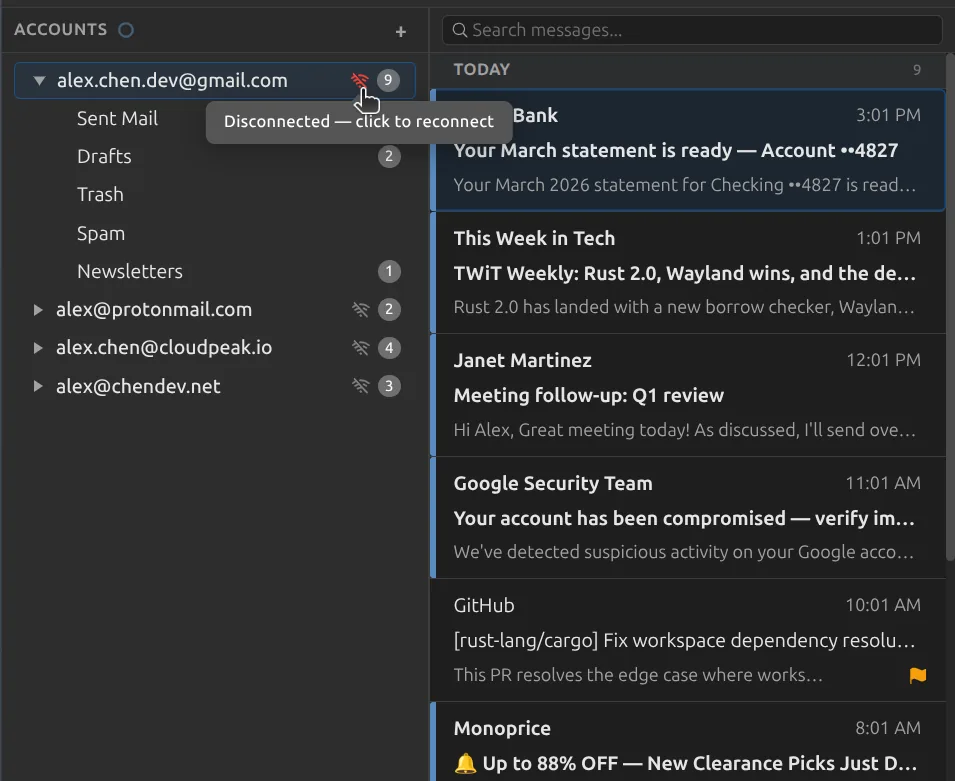
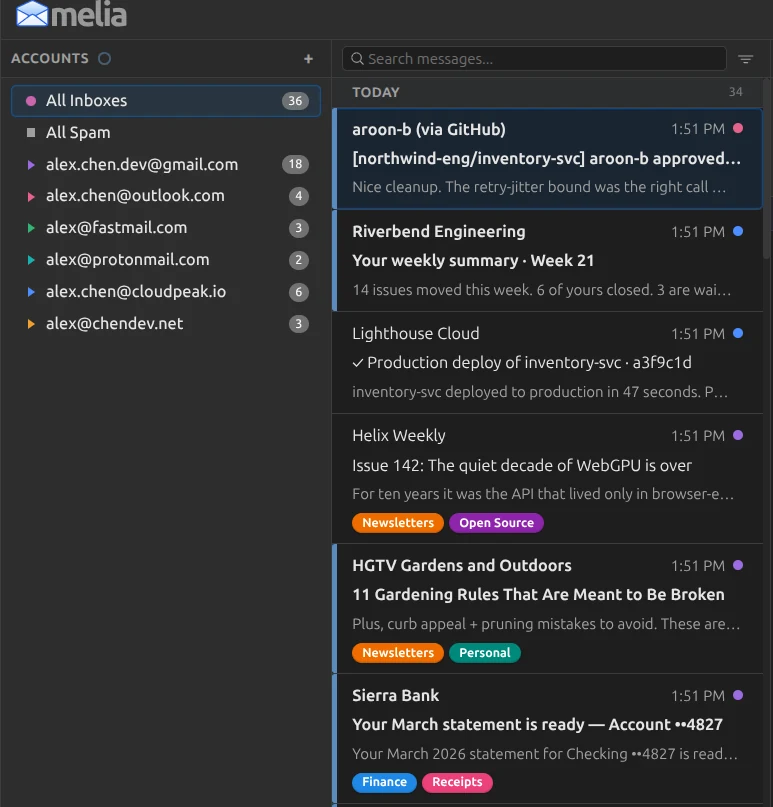
Turn on All Inboxes and every account's inbox merges into a single list, newest first. It is optional, it is off until you ask for it, and any account you would rather keep separate can sit it out.
This is a real view, not a summary. Read, reply, delete, move, archive, flag, mark as spam, and add or remove Gmail labels without leaving it. Every action still applies to the message's own account, so nothing gets crossed.
- Each account gets its own color, chosen by you, so you can tell at a glance where a message came from
- Click a message's account dot to jump straight to it in its own account
- Keep any account out of the merged view from its settings, or by right-clicking it in the sidebar. Excluded accounts dim in the list so it stays obvious
- The unread, flagged, and attachment filters all work here, not just inside a single folder
- Full keyboard control: Del to delete, Ctrl+A to select all, E to archive into the message's own account
And an All Spam view, for the same reason
Spam folders empty themselves on a schedule, which is exactly how a real message disappears before you ever notice it was misfiled. All Spam puts every account's spam folder in one list so a good email has somewhere to be caught. Press ! on a message to send it back to its own account's inbox.
Email Management
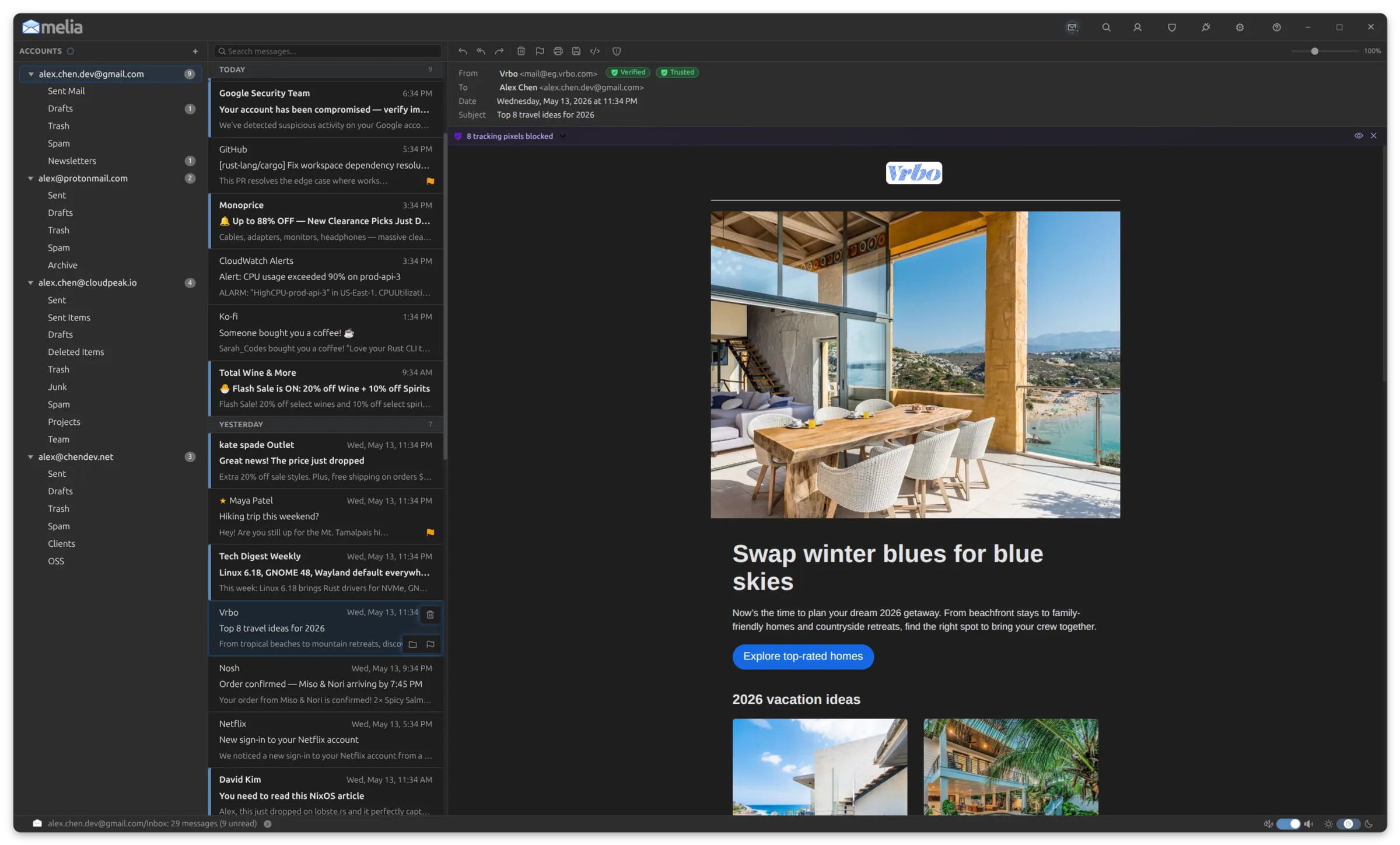
A classic three-pane layout that puts you in control. Manage multiple accounts from a single window, organize your folders, and handle messages with the speed and precision you expect from a desktop client.
- Three-pane layout with resizable panels
- Multi-account support: Gmail, Outlook, Yahoo, Fastmail, self-hosted, and more
- Full folder management: create, rename, move, and delete
- Message operations: move, copy, archive, delete, mark read/unread, flag
- Multi-select messages with shift-click and ctrl-click
- Drag-and-drop messages between folders and accounts
- Open messages deliberately: choose single click or double click under Settings, Reading. On double click, browsing only highlights a message, and nothing opens or is marked read until you double-click it or press Enter
- Open any message in its own window from the right-click menu or with Alt+Enter
- Narrow the list to a single conversation with one keystroke, without threading or rearranging anything
Account Setup
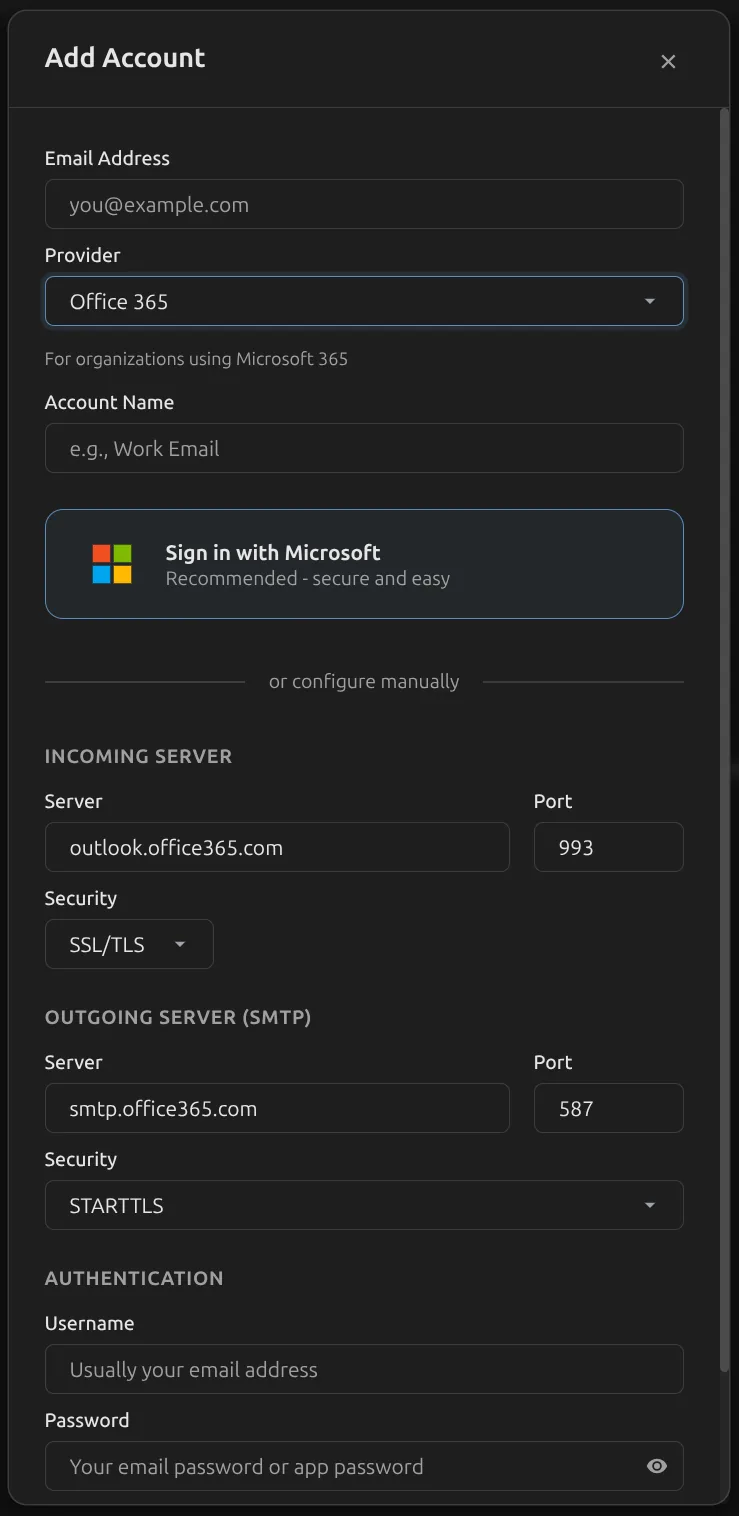
Add your email in seconds. Melia ships with presets for over 30 email providers that auto-fill your server settings, so setup is as simple as entering your email address and password. For providers that aren't in the list, full manual IMAP/SMTP configuration is available.
- Built-in presets for over 30 email providers: Gmail, Outlook, ProtonMail Bridge, Fastmail, Yahoo, iCloud, and more
- OAuth2 authentication for Microsoft accounts; app passwords for Google
- TLS, STARTTLS, or unencrypted connections with self-signed certificate support
- Enable or disable accounts without deleting them
- Drag-and-drop account reordering in the sidebar
- Tabbed account settings: General, Server, Folders, Signatures, Aliases, Notifications, and Rules, with archive options in their own panel
- Download history, set per account: choose how much mail to pull down, from the most recent 1,000 messages, through Extended at 10,000, all the way to everything on the server
- Per-account new mail sounds and per-account colors for the All Inboxes view
Compose and Reply
Write emails the way you want. A full rich text editor, separate compose windows, inline replies, and all the tools you need to communicate clearly and efficiently.
- Rich text editor: bold, italic, underline, strikethrough, lists, blockquote, code blocks, and links
- Separate compose window with instant-open pooling, or inline reply within the reading pane
- Insert inline images via drag-and-drop, automatically converted to CID attachments at send time
- Message priority toggle: Normal, High, or Low (sets X-Priority header)
- Request read receipts or delivery receipts from the compose toolbar
- See what came back: Melia tracks whether a message you sent was delivered or read, showing the status on the message and a marker in your Sent folder
- Draft auto-save with visible countdown timer; resume drafts from any window
- Native spellcheck with dictionary suggestions and add-to-dictionary support, and a switch under Settings, Compose to turn it off entirely when you would rather not see red underlines as you type
- Contact autocomplete, per-account signatures, and send with Ctrl+Enter
- HTML signature editor with color-coded markup, automatic indenting, tag completion, and a live preview beside the editor as you type
- No duplicate sent mail: Melia works out for each account whether your provider already files your sent copy, with a Keep a Copy in Sent setting to override it
- If a sent message cannot be saved to your Sent folder, Melia tells you the reason your mail server gave instead of failing quietly
Send from any address you own
An alias is a sending identity, not a second account. Mail addressed to it still arrives in the same inbox. The alias exists so your mail can go back out wearing the right name. Add as many as you like under Aliases in Account Settings.
- Every alias gets its own display name, address, optional Reply-To, and its own plain text or HTML signature. Leave a signature blank and it falls back to the account's
- No second password, ever. Melia signs in with the account's own credentials and rewrites the From header, so an alias never needs a login of its own
- Replies sort themselves out: when a message was addressed to one of your aliases, Melia answers as that alias automatically. Mail to sales@ goes back out as sales@, and Reply All knows not to copy you back to yourself
- The From control stays a plain label until you actually have a choice, then becomes a picker grouped under each account, so it is never unclear which account is doing the sending
- Switching identity mid-message swaps the signature live instead of stacking a second one, and a draft saved as an alias reopens as that alias
- The Sent copy carries the alias too, so your Sent folder shows what the recipient actually saw
- Aliases travel in your .meliaconfig backup, attached to their account, carrying no credentials
One caveat worth knowing up front: sending as an address on a domain you do not control can fail the recipient's SPF or DMARC checks, because your outgoing server may not be authorized to send for that domain. Melia sets the headers faithfully, but it cannot make a third-party domain vouch for your provider. Aliases work best for addresses that already route through the same provider: one on your own domain, a plus-address, or a shared mailbox you are authorized to send for.
Email Rendering
HTML emails look the way they should. Melia uses Shadow DOM isolation, intelligent dark mode transformation, and post-render quality audits to display even the most complex newsletters beautifully, in any theme.
- Shadow DOM isolation: email styles never leak into the app UI
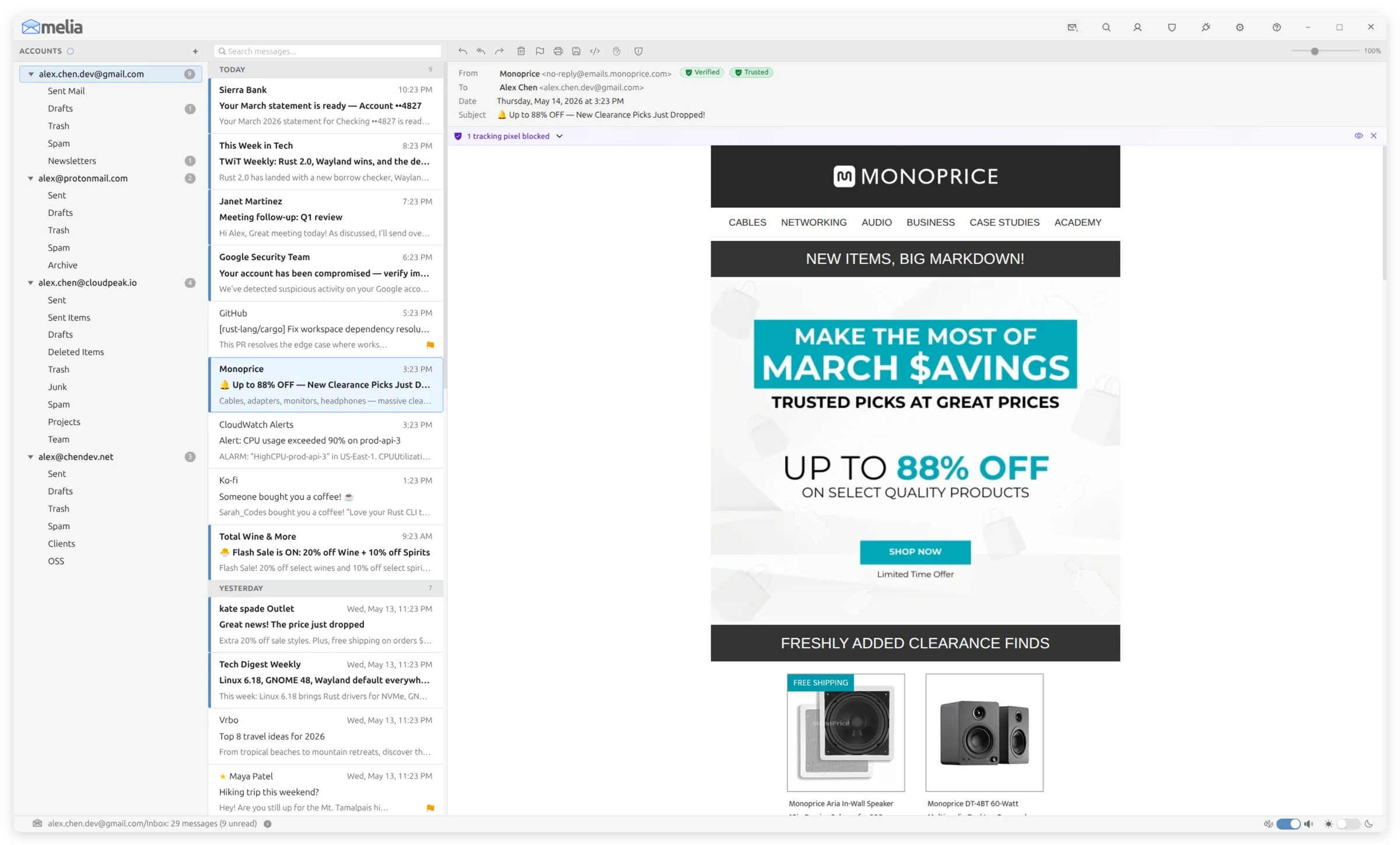
- Intelligent dark mode: near-white backgrounds converted to dark, decorative elements lightened, template grays stripped
- Post-render contrast audit: walks visible text, checks WCAG ratios, overrides unreadable content
- Post-render padding audit: measures text positions, injects spacing where content touches container edges
- Per-message zoom: 50% to 200% with keyboard shortcuts (Ctrl+. / Ctrl+, / Ctrl+/), or scroll the mouse wheel over the zoom control and middle-click to snap back to 100%
- Quoted content auto-detected and collapsed with expand/collapse toggle
- Smart padding detection: examines HTML structure and email framework markers before injecting spacing
Every alphabet your senders use
 English
 Japanese
 Arabic
 Russian
 Hindi
Hindi
 Spanish
 Korean
 Hebrew
 Greek
Greek
 Tamil
Tamil
 French
 Chinese
 Thai
Thai
 Ukrainian
 Armenian
 German
 Persian
 Bengali
 Turkish
 Georgian
 Vietnamese
 Punjabi
 Italian
 Telugu
 Polish
 Urdu
Urdu
 Portuguese
 Gujarati
 Czech
Czech
 Hungarian
 Swedish
 Finnish
 Dutch
Dutch
 Romanian
Emails displayed as written. Melia reads modern Unicode mail and decades of legacy encodings, so text arrives exactly the way it was sent, in over 100 languages, from Japanese to Arabic to Cyrillic.
Every writing system on Earth
100+ languages · 40+ scriptsWestern European
English, French, Spanish, Portuguese, Italian, German, Dutch, Danish, Norwegian, Swedish, Finnish, Icelandic, Irish, Welsh, Luxembourgish, Catalan, Galician, Basque, Afrikaans
Central & Eastern European
Polish, Czech, Slovak, Hungarian, Slovenian, Croatian, Bosnian, Serbian, Romanian
Baltic
Lithuanian, Latvian, Estonian
Cyrillic
Russian, Ukrainian, Bulgarian, Macedonian, Belarusian
Greek
Greek
Turkic
Turkish, Azerbaijani
Hebrew script · right to left
Hebrew, Yiddish
Arabic script · right to left
Arabic, Persian (Farsi), Urdu, Pashto
Southeast Asian
Thai, Lao, Khmer, Burmese, Vietnamese
East Asian
Japanese, Chinese (Simplified), Chinese (Traditional), Korean
South Asian · Indic
Hindi, Bengali, Punjabi, Gujarati, Marathi, Nepali, Tamil, Telugu, Kannada, Malayalam, Sinhala
Other scripts
Armenian, Georgian, Amharic, Mongolian, Tibetan
Plus full emoji and mixed-script messages. A subject line that mixes English, Kanji, and an emoji renders as one clean line.
And now Melia speaks your language
Displaying mail in any script is one thing. Using an app in your own language is another. Melia's interface now speaks Français, Português do Brasil, and Deutsch: choose your language under Localization in Settings and the whole client follows, menus, settings, and all. Spanish, Italian, and Russian are next.
These translations are new, and Melia says so plainly rather than pretending otherwise. If a phrase reads wrong, the Localization section lets you suggest better wording from inside the app and export your suggestions as a file. Nothing is transmitted automatically, and nothing leaves your machine unless you decide to send it.
- French, Brazilian Portuguese, and German interfaces available today
- Standard folder names appear in your language. Sent, Drafts, Trash and the rest are translated, while folders you named yourself are left exactly as they are
- A Localization section in Settings that gathers language and time format in one place
- Time format: Automatic, 12-hour, or 24-hour. Automatic follows your system's regional setting, so a 24-hour region shows 24-hour times without you changing anything
- Suggest better translations from inside the app, then export them as a file to send in. Nothing is uploaded on your behalf
Email Headers, Decoded
Most email clients bury headers behind a wall of raw text. Melia parses them into a structured, interactive viewer that makes the invisible visible, from authentication results to the exact route your email traveled.
- Seven collapsible groups: addressing, content, identity, authentication, routing, metadata, and more
- Routing chain timeline: a visual map of every server hop with protocols and timestamps
- Transit time badge: see how long your email took from first hop to delivery
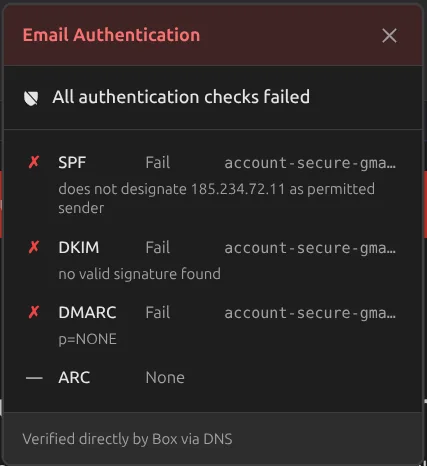
- Color-coded SPF, DKIM, and DMARC badges with detailed hover tooltips
- Clickable email address pills that open a compose window
- Toggle between structured pretty view and raw plaintext
- Read them without opening the message: right-click and choose View headers, or press
H. The message is not marked read, and it works inside spam folders, which is where it matters most
Gmail Labels, Done Right
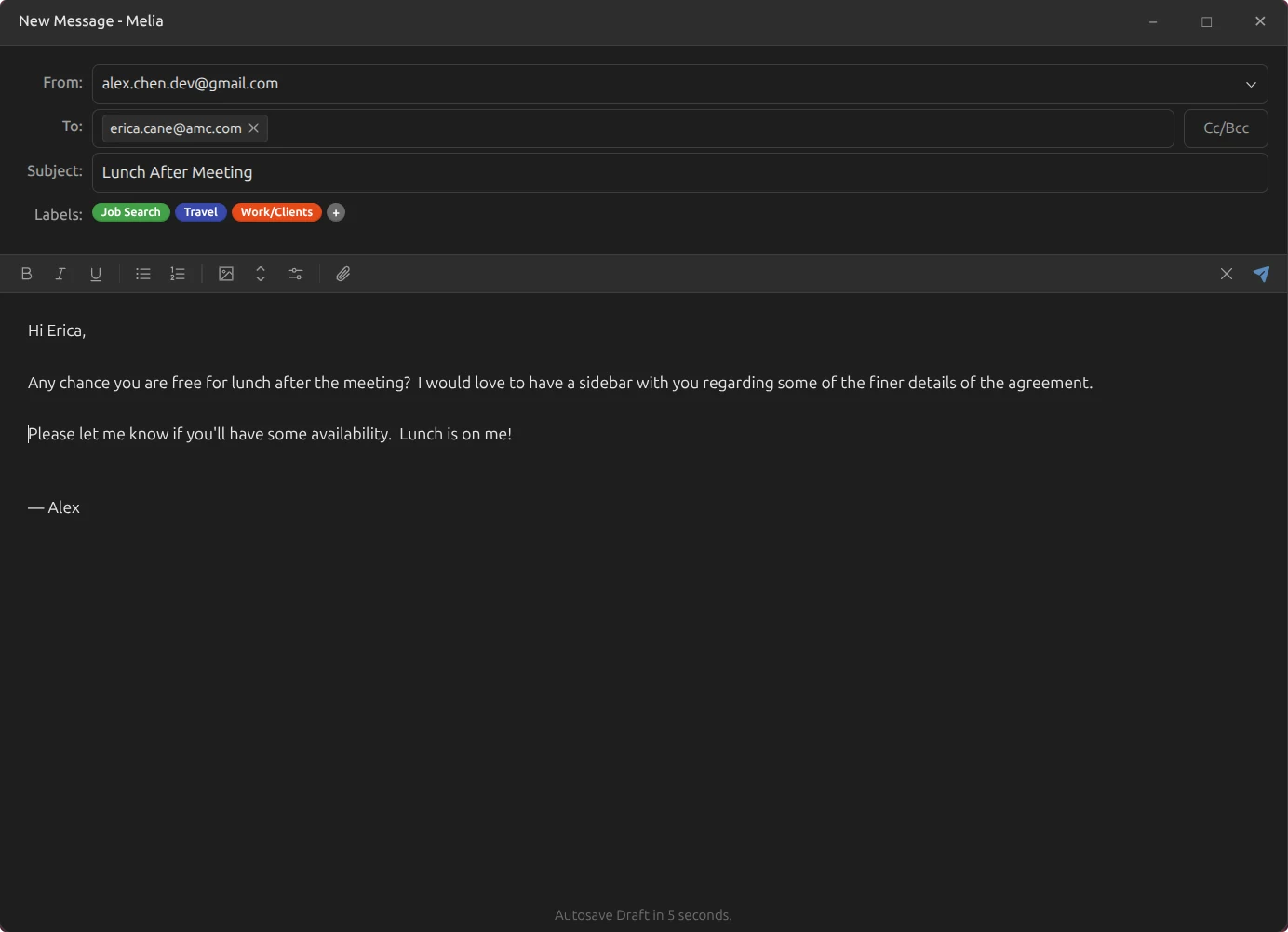
Gmail labels are more than folders, and Melia treats them that way. For Gmail and Google Workspace accounts, every label shows up as a colored chip throughout the app, and you can create, apply, and manage them without ever leaving the keyboard. Melia even keeps whole threads labeled as they grow, and lets you attach labels before a message is ever sent.
Everywhere You Look
- Colored label chips on every message in the list, so you can scan your inbox at a glance
- Nested labels (Travel/Flights, Work/Clients) shown as a real hierarchy in the sidebar, each with its own colored badge
- A Labels row in the reading pane with one-click add and remove
- Adaptive layout: full label names when they fit, compact single-letter color beads when space runs short
- Automatic, consistent colors: a label is the same color everywhere in the app, or right-click any label to choose your own
- Your own labels front and center; Gmail system labels stay out of the way
Create, Apply, and Manage
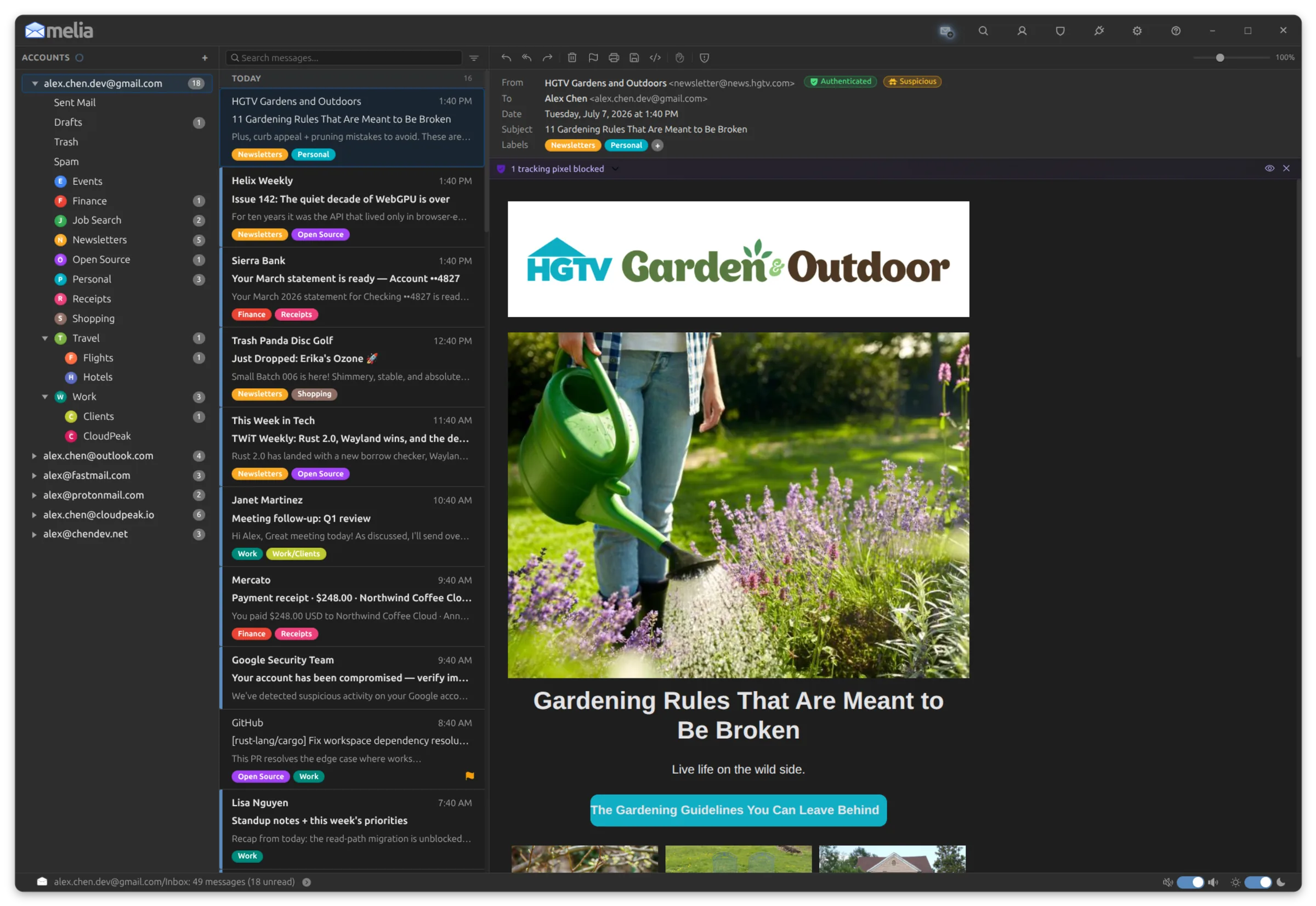
- Label picker: filter as you type, or create a brand-new label on the spot, nested labels included
- Apply and remove labels instantly, with every change synced straight back to Gmail
- Multi-select to label many messages at once
- Keyboard-first: press
Gto open the picker, then arrow keys and Enter to toggle - Rename or delete labels right from the folder tree
- The picker is a real window: drag it where you want it, pull the edge to resize when you have a lot of labels, and Melia remembers the size
Sticky Labels
- Label a conversation once and it stays labeled: every reply, incoming and outgoing, inherits the thread's labels automatically
Send With Labels
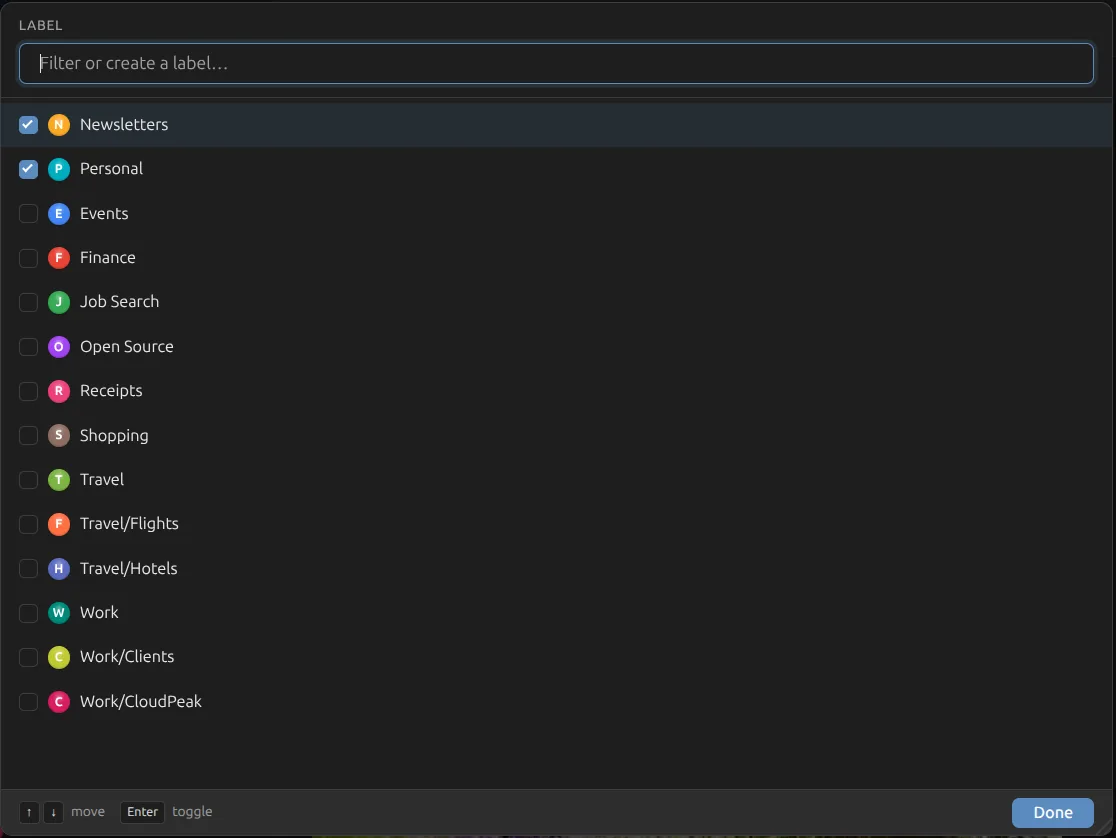
- Assign labels while you compose a new message, straight from the composer
- Melia files the sent copy under those labels automatically once it reaches the server
- Your Sent mail arrives already organized, with no cleanup afterward
Search
A quick filter for the folder you're in, a full Advanced Search window for everything else, and Super Search for when a plain keyword is not precise enough. All of it private, offline, and instant.
Quick Search
- As-you-type filtering of the current folder; results update instantly
- Matches against subject, sender name, and sender address
- Highlighted matches so you can scan results at a glance
- Keyboard-first: hit
/orCtrl+Fto start searching
Advanced Search
- Dedicated search window powered by SQLite FTS5 full-text indexing
- Search across all accounts and folders, or scope to a specific account or folder
- Searches the full message body, not just subjects and senders. Older mail is indexed quietly in the background, so a phrase you remember writing is findable
- Toggle which fields to search: subject, sender, snippet, or body
- Date range presets: today, last 7 days, last 30 days, last 3 months, and more
- Relevance-ranked results with match highlighting and percentage scores
- Search history with autocomplete: your recent searches, one keystroke away
- Results appear as you type, and the whole window is keyboard driven: Enter or the down arrow steps from the search box into the results, Escape clears the search without losing the account, folder and date settings you chose
Super Search
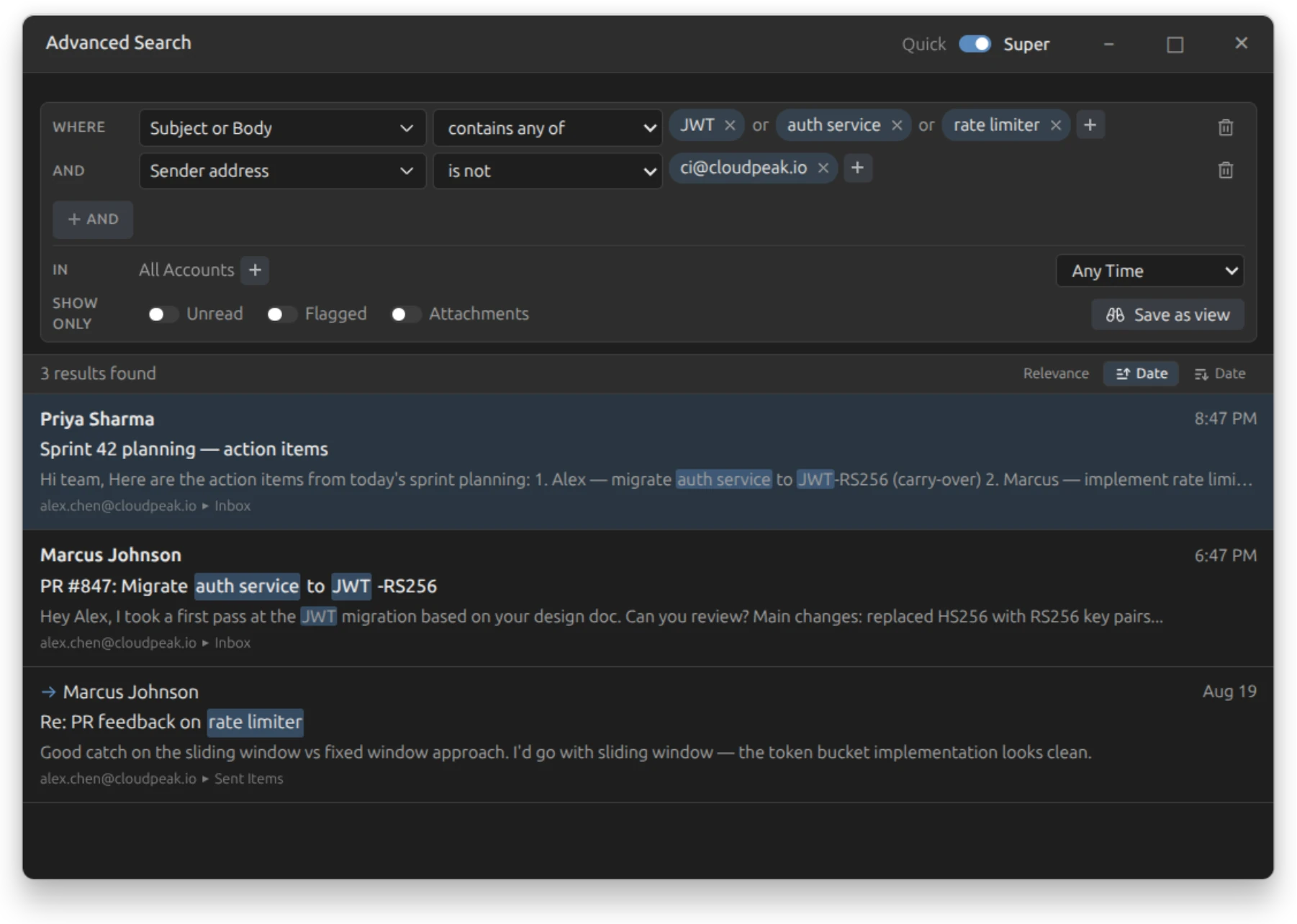
One keyword is a blunt instrument. Flip Advanced Search into Super and you can describe what you are actually looking for, a clause at a time, in words you would use out loud.
- Read your own query back in plain language: where Subject or Body contains any of JWT, auth service, or rate limiter, and Sender address is not ci@cloudpeak.io
- Each clause chooses its own fields: subject, sender name, sender address, sender domain, recipient, snippet, or body. Point one clause at several at once and a hit in any of them counts
- Test with contains, equals, starts with, or a wildcard pattern, and negate any of them. Contains none of is the clause a single keyword box has no way to express
- Clauses stack with and, each one narrowing further, while or does the widening inside a clause. List as many values as you like and any one of them matches
- Point it wherever you like, from every inbox at once down to two specific folders in different accounts, with the unread, flagged, and attachment filters still available on top
- When it is a search you will want again, Save as view turns it into a saved view without rebuilding it
A search you can keep
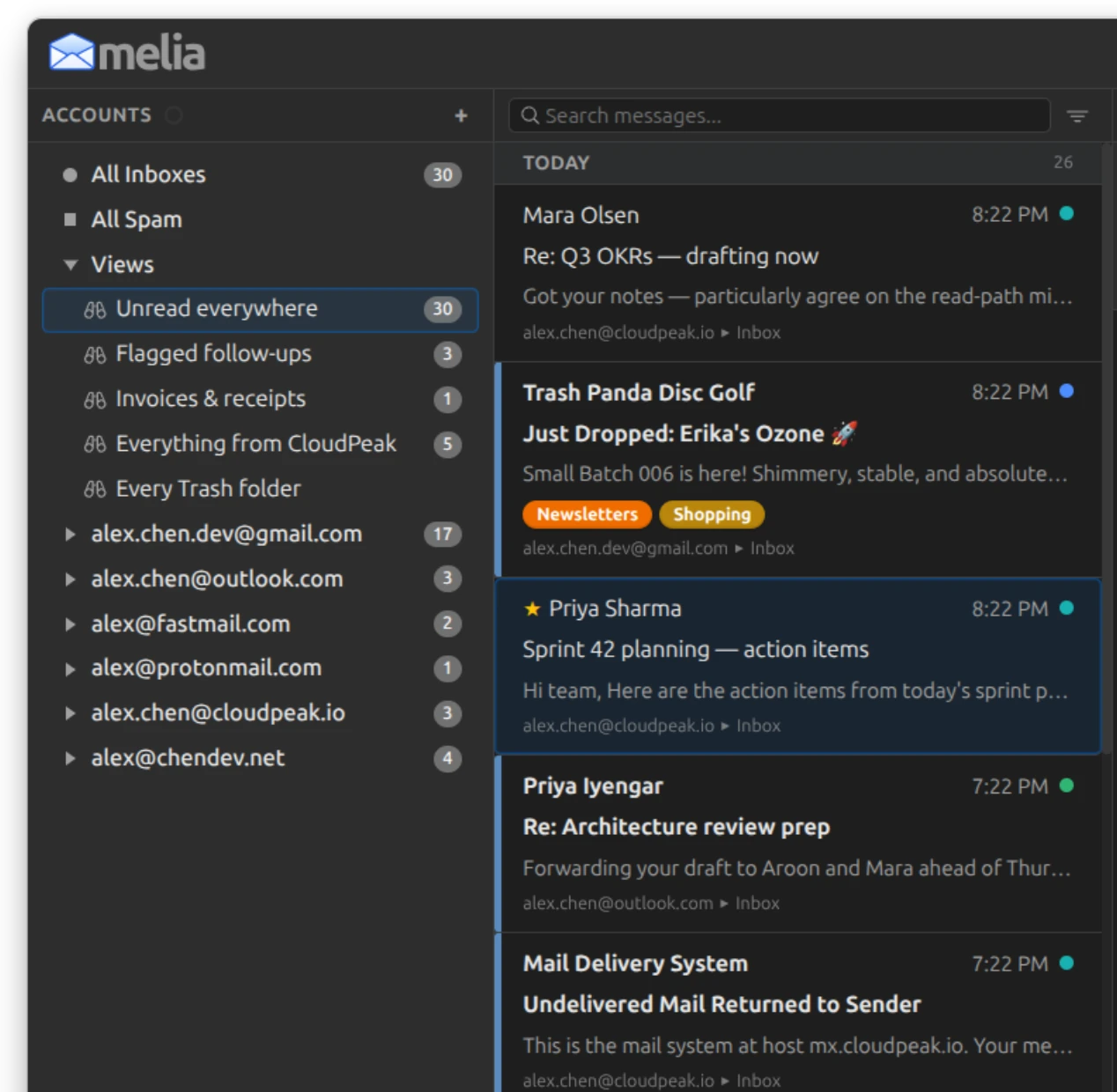
Build a search in Advanced Search until it shows exactly the mail you want, then save it as a view in your sidebar. Click it and that mail comes straight back, re-run fresh every time.
A view never moves or hides anything. Your mail stays exactly where it lives, and every message shows which account and folder it came from. Delete a view and you have deleted a saved search, never a message.
- Save any Advanced Search as a permanent view in the sidebar, updated every time you open it
- Build a view out of folders alone, with no search terms at all. Pick every Trash, or every Drafts across every account, and keep it one click away
- Views show the same results the search did, including anything sitting in Trash or Junk, so what you saved is what you get
- Drag views into whatever order suits you
- Right-click a view to edit its search, rename it, or delete it. Right-click the Views heading for New view and Delete all views
- Views keep loading as you scroll, so one spanning tens of thousands of messages does not stop short
Read the full Saved Views guide, which walks through building the search, scoping it, and editing a view later.
Conversations
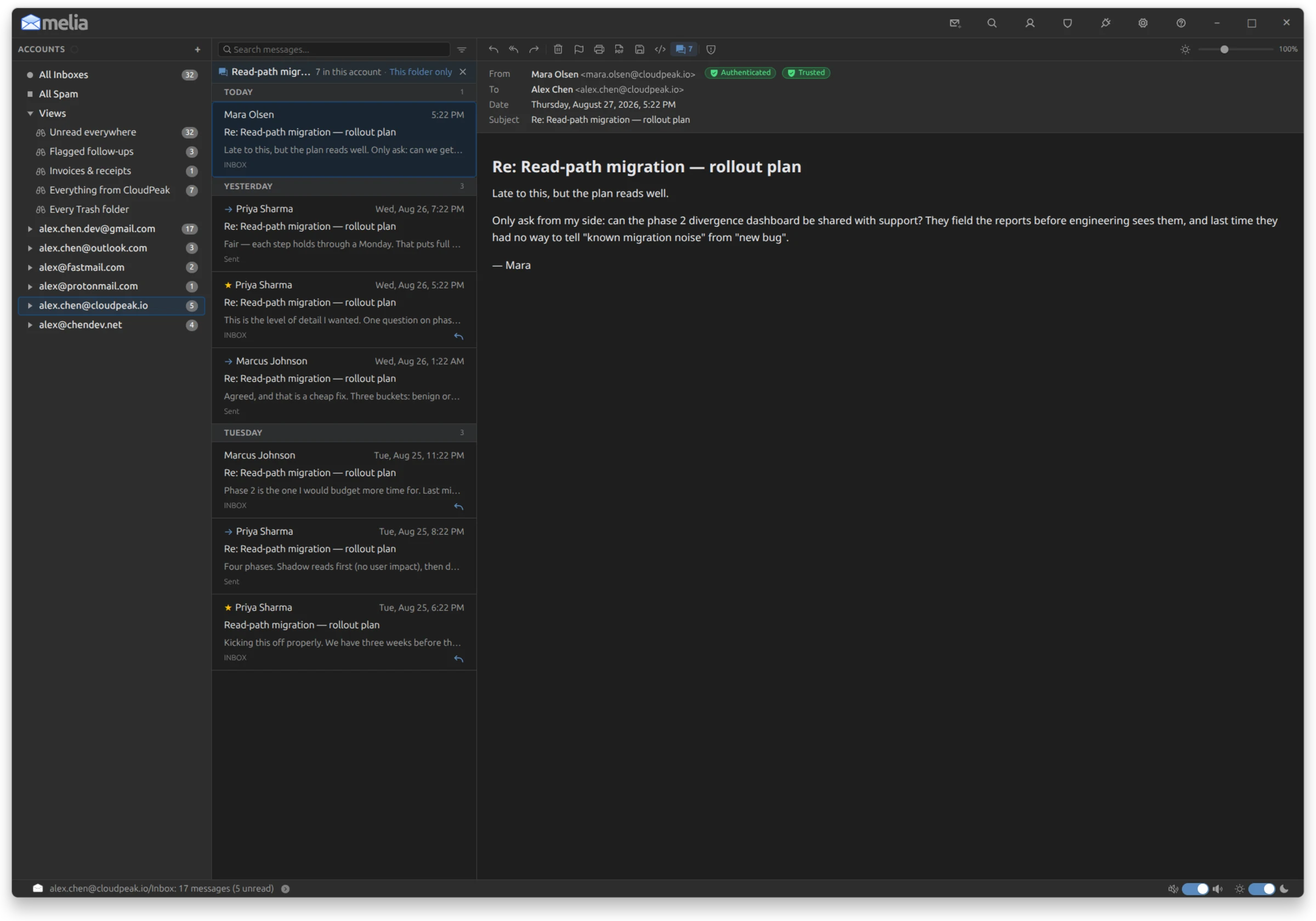
Press i on any message and the list narrows to just that conversation. Press it again to pull in the rest of the thread from your other folders, and once more to step back out. Nothing is threaded, collapsed, or rearranged on your behalf: it is a filter you switch on when you want it, and off when you don't.
One key, three steps
- First press: the list shows this thread and nothing else, in the folder you're already in
- Second press: the rest of the thread joins it from everywhere else in that account, your own sent replies included. Trash is never pulled in
- Third press, or
Escape, and you're back in the folder you started from - A thread that lives in only one folder skips the middle step and simply toggles on and off
- A bar above the list names the subject and states the counts, so a short conversation reads as short rather than as a broken filter. Click 3 elsewhere to widen, click again to come back
Reach it however you work
- The
ikey (orAlt+I), the right-click menu, and a button in the reading pane toolbar all run the same cycle, so no two of them behave differently - The toolbar button carries the message count, so you can tell a long thread from a one-off before you open it
- None of them appear when there's no conversation to isolate. Melia would rather offer nothing than a control that does nothing
A filter, not a mode
- Nothing moves, merges, or hides. Every message stays exactly where it lives, and each one shows you which folder that is
- You keep your place. Isolating never moves you off the message you invoked it from, and leaving puts you back on it
- Move, delete, flag, or mark messages from inside a conversation exactly as you would anywhere else, undo included. The counts keep up as you go
- Type in the search box while a conversation is open and you filter the thread, not the whole folder
- Any deliberate move, to another folder or another message, drops the isolation on its own. There's no mode left running that you have to remember to leave
Threaded by the headers, not the subject line
- Melia follows
Message-ID,In-Reply-To, andReferences, the reply linkage the sending client actually recorded. Two unrelated messages that happen to share a subject never collapse into one conversation - Gmail accounts also honor Gmail's own thread id, so a conversation matches what Gmail itself considers one
Contacts
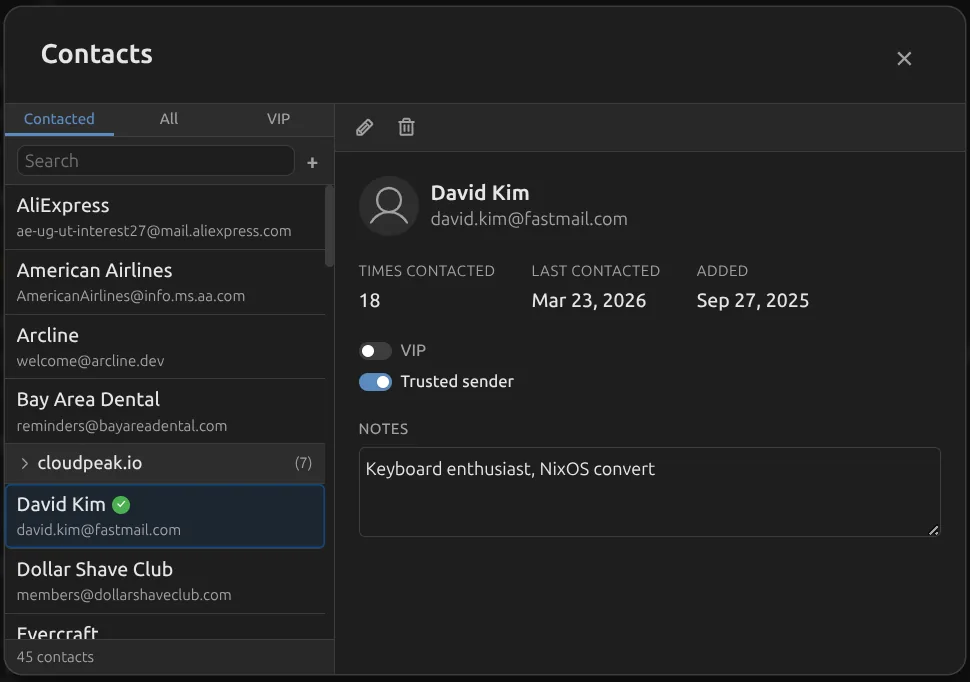
Melia builds your address book automatically from sent and received email. Organize contacts, mark VIPs, track engagement, and enjoy instant autocomplete when composing.
- Three browsing tabs: Contacted (people you've emailed), All, and VIP
- Per-contact details: edit name and email, add notes, view trust status
- Engagement tracking: times contacted, first and last contact dates
- Domain grouping for easier browsing of organizational contacts
- Cleanup utility: remove stale or auto-generated contacts in bulk
- Feeds autocomplete in the compose window for fast addressing
Inbox Rules
Route your email automatically with per-account rules. Combine as many conditions as a message needs, negate any of them, and send what matches to a folder, to spam, to trash, or straight out of existence.
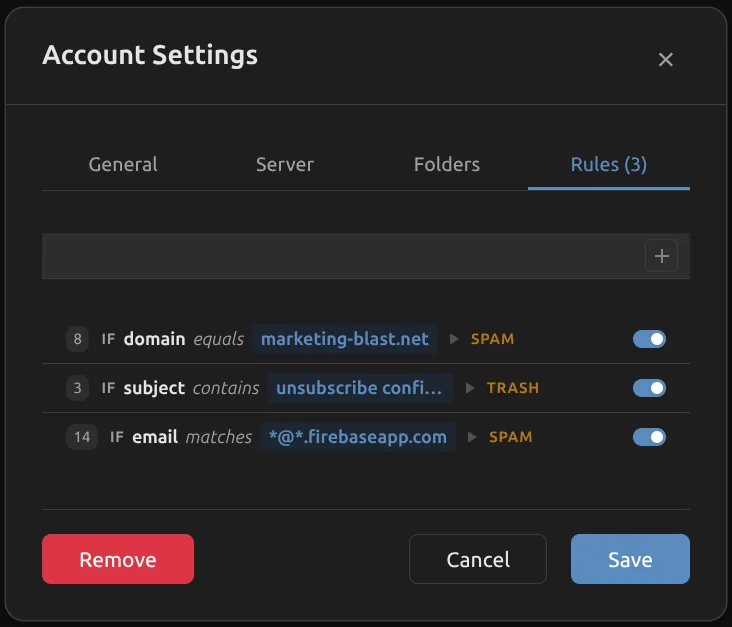
- Multi-clause rules: a rule can hold several conditions at once, combined with match all or match any
- Any condition can be negated: is not, does not contain, does not match
- Match on sender name, sender email, sender domain, subject, or body
- Match on who a message was addressed to, so an alias you gave to one company can be filtered on its own
- Operators: contains, equals, or wildcard matching
- Send matching mail to any folder, to spam, or to trash, or delete it permanently without it passing through Trash at all
- Drag-and-drop rule reordering (first match wins, top to bottom)
- Hit counter shows how many messages matched each rule
- Create any rule from a message: right-click it and Melia pre-fills the sender details, tells you how many messages in the folder already match, and offers to move those too
- Alt+R opens the selected account's rules, Alt+S its settings
Tidy & Trim
Three tools to keep your mailbox clean. Tidy consolidates duplicate IMAP folders. Trim deletes old messages in bulk with a live preview before you commit. Empty clears a spam or trash folder out entirely.
Tidy
- Detects duplicate standard folders (Sent / Sent Items / Sent Messages, Trash / Deleted Items, etc.)
- 4-step wizard: Analyze, Configure, Confirm, Execute
- Moves messages to your chosen canonical folder, then deletes empty duplicates
Trim
- Right-click any folder or account to trim old messages
- Flexible time picker: 1-100 of any unit from minutes to years
- Live preview count before deletion, with confirmation step
Empty
- Right-click any spam or trash folder and choose Empty Spam or Empty Trash to clear it permanently in one step, instead of moving thousands of junk messages into the trash and having to deal with them twice
- Right-click All Spam to empty every account at once. You get a list of exactly which accounts and how many messages, you can untick any account you would rather leave alone, and you can stop partway through
Select which folder to keep for each group.
Security and Protection
Your credentials are safe and your inbox is actively defended. Melia uses OAuth2 where available, stores passwords in your OS keyring, enforces encrypted connections, and runs every incoming message through a layered protection system.
- OAuth2 authentication for Microsoft accounts; App Passwords for Gmail and Google Workspace
- IMAP and SMTP connections secured with TLS/SSL
- Credentials stored in your OS keyring, never in plaintext
- Structured email header viewer with SPF, DKIM, DMARC badges and routing timeline
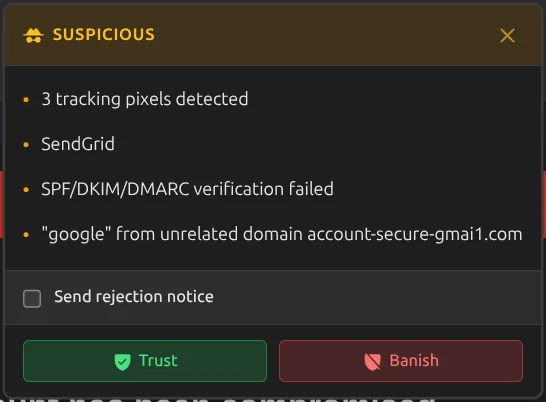
- Tracking pixel detection and blocking: surveillance pixels neutralized before they fire
- Suspicious sender detection: display name mismatches flagged automatically
- Look-alike sender addresses caught on sight: a fake “apple.com” written with a Cyrillic letter is flagged as suspicious, and View headers shows you the real address behind it
- Link safety: hover any link to see its true destination before clicking; deceptive, look-alike, and redirect links flagged on-device
- Read receipt suppression: no silent confirmations sent to senders
- Spam quarantine: a message opened from a spam folder cannot reach any server at all. Images and trackers are blocked, links will not open, attachments cannot be handed to another application, and printing is disabled until you mark it Not Spam
- Messages open inside an extra layer of system-level sandboxing, limiting what a malicious email could reach if it ever tried to exploit the app
 Authentication
 Suspicious
Desktop Integration
Melia is a native desktop application, not a web wrapper. It wears your desktop's own window chrome, lives in your system tray, sends real notifications, and puts every keyboard shortcut it has under your control.
- More than two dozen built-in themes: Light, Dark, Auto (time-based: dark before 6 AM and after 6 PM), and Follow system, which tracks your desktop's own light/dark setting and switches when it does. Community palettes include Catppuccin, Nord, Gruvbox, Dracula, Rosé Pine, and WhiteSur Light and Dark, colour-matched to the popular macOS-style GTK theme
- Auto and Follow system let you choose which light palette and which dark palette they swap between, say Catppuccin Latte by day and Mocha by night, instead of only the built-in Light and Dark
- Read any message light or dark independently of Melia's own theme. Set a default under Settings, Appearance, or flip a single message with the sun/moon button above it or Ctrl+D. The compose window follows the same setting, so writing a message looks the way reading one does
- Native window integration: your desktop's own drop shadow and rounded corners on most systems, tiling flush against other windows, and resizing by dragging any edge or corner
- Desktop notifications for new mail with configurable sound effects: 53 built-in sounds, or any sound file from your own computer
- Per-account arrival sounds, so you can tell which account new mail landed in without looking
- Click a new-mail notification to jump straight to that message, even when Melia is minimized
- Open a message from anywhere with a melia:// permalink: it opens in its own window on top of what you are doing, and a Show in main window button pulls it back into the main window
- Configuration import and export via compressed .meliaconfig files (passwords excluded)
- .eml file support: open via Ctrl+O, double-click, CLI argument, or drag-and-drop, or open an attached .eml straight from a message without saving it first
- Print any email with Ctrl+P using the native print dialog, falling back to a PDF you can print from your own viewer when that dialog is unavailable
- Save any email as a PDF from the reading-pane toolbar or the right-click menu
- Forward several emails at once: select them, right-click, and send them together as attachments in a single message
- Message list density: Compact, Comfortable, or Spacious, with separate Compact and Spacious options for the accounts and folders list
- Custom email font and font size (8-48px) from any installed system font, gathered into their own Fonts section under Settings, Mail
- A separate Monospace setting for code, aligned tables, and plain-text messages, offering only faces that are genuinely fixed-width
- Plain-text messages use a fixed-width font by default, so tables, columns and separators line up the way the sender laid them out. Switch it off to read plain text in your normal font instead
- System Default means your desktop's actual font. When a message asks for a font you do not have, Melia falls back to the one you chose rather than an unrelated serif
- Printing a message or saving it as a PDF uses the same fonts you see on screen
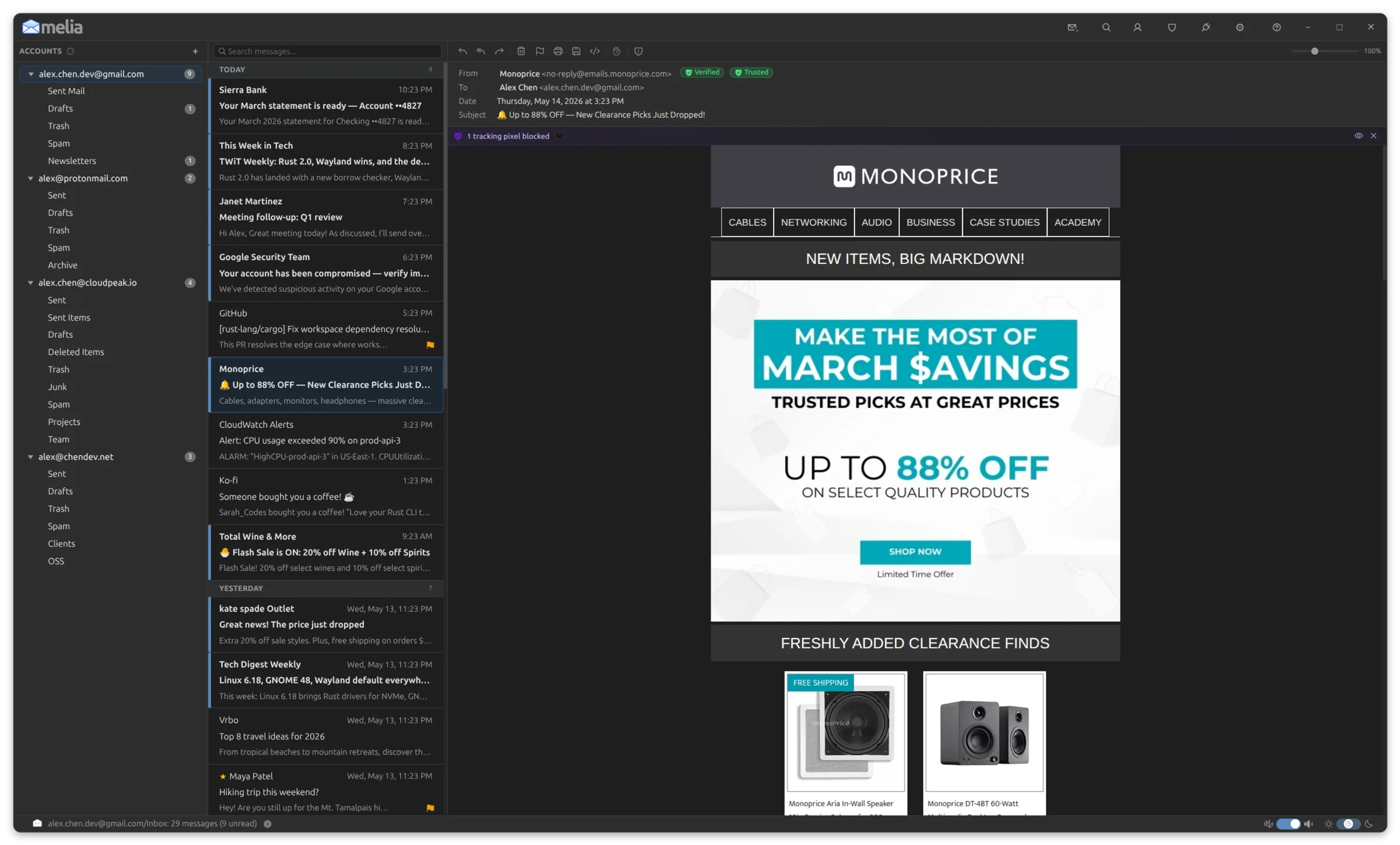 Light
Dark
Light
Dark
Keyboard control
Settings, Shortcuts lists every key Melia uses, in one scrollable pane. Not a printable cheat sheet you have to go and find, but the keys themselves, each one switchable where switching it makes sense.
- Most commands answer to two keys: a bare letter and a Ctrl or Alt chord.
RandCtrl+Rboth reply,MandAlt+Mboth toggle read. Each has its own switch, so you can free up a letter for typing and keep the chord - One master switch turns every single-key shortcut off at once, for anyone who catches keys by accident. The chords keep working, so the keyboard still drives the whole app
- The keys Melia cannot reassign are listed too, under Always on: Esc, Tab, Ctrl+Q, Ctrl+W, the arrow keys, F5. Some belong to the window, some are handled before Melia sees them, and some are conventions no application should redefine. They are shown so you can find them, not hidden because they are fixed
- Reach the right-click menu from the keyboard with the Menu key or Shift+F10, then move through it with the arrow keys
- Move through every account and folder without touching the mouse: hold Ctrl and use the arrow keys to walk the whole tree, step into folders, and collapse them, while the plain arrow keys stay with the message list
- Press 1 to 9 to jump straight to an account, or 0 for All Inboxes, pressing it again to switch to All Spam. The top-row number keys work on AZERTY and other layouts where digits need Shift
In your system tray
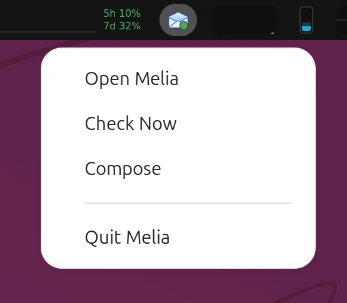
Melia can tuck itself into the tray and keep checking mail with the window closed. Whether it ever does that is entirely your choice, and it can never hide somewhere you cannot get it back from.
- The tray icon carries a green dot the moment you have unread mail, and right-clicking it gives you Open Melia, Check Now, Compose, and Quit Melia
- Minimize to tray and close to tray are separate settings, so you can use either, both, or neither. With close to tray on, the button, Alt+F4 and Ctrl+W hide the window instead of quitting. Ctrl+Q always quits, as does Quit in the tray menu
- If your desktop has no system tray, the setting says so and stays switched off. If a tray extension crashes mid-session, Melia keeps the window where you can see it and restores its icon on its own once the tray comes back
- Keep the dock badge showing unread mail only, for desktops that stack notification counts on top. The badge relies on a desktop API that Ubuntu Dock, KDE Plasma, and the Dash-to-Dock extension implement; stock GNOME Shell does not, so no badge appears there
Offline and Reliability
Melia works even when your network doesn't. An offline-first architecture backed by SQLite means your email is always accessible. Outgoing messages queue automatically and send when connectivity returns.
- Offline-first SQLite database: read, search, and browse without a connection
- Outbox with automatic retry: queued messages send when connectivity returns
- Deferred sync queue: flag changes, deletions, and moves replayed automatically
- Per-account connectivity monitoring with automatic reconnection and OAuth token refresh
- Priority connection pool: two IMAP connections per account so interactive actions never block sync
- Virtualized message lists for smooth scrolling through folders with thousands of messages
- Melia asks your mail server only for what it does not already know, so opening and switching folders is quicker and uses a small fraction of the data it once did
- Syncing large folders is significantly faster, and the interface stays smooth while mail downloads, including the first sync of a large mailbox and on hard drives and other slower storage where it could previously freeze for seconds at a time
- Unread counts in subfolders keep up on their own, instead of only updating when you click the folder
- Long lists keep loading as you scroll, instead of stopping after a couple of thousand messages
- Optimistic UI: delete, move, and read/unread changes appear instantly before server confirmation